Markdown 扩展
标题锚点
标题会自动应用锚点链接. 可以使用 markdown.anchor 选项配置锚点的渲染.
链接
内部链接
内部链路转换为 router link 以用于 SPA 导航. 另外, 每个子目录包含的 index.md 都会自动转换为 index.html, 并有对应的 URL /.
例如, 给定以下目录结构:
.
├─ index.md
├─ foo
│  ├─ index.md
│  ├─ one.md
│  └─ two.md
└─ bar
   ├─ index.md
   ├─ three.md
   └─ four.md
且假设您在 foo/one.md 中:
[Home](/) <!-- sends the user to the root index.md -->
[foo](/foo/) <!-- sends the user to index.html of directory foo -->
[foo heading](./#heading) <!-- anchors user to a heading in the foo index file -->
[bar - three](../bar/three) <!-- you can omit extention -->
[bar - three](../bar/three.md) <!-- you can append .md -->
[bar - four](../bar/four.html) <!-- or you can append .html -->
页面后缀
默认生成的页面和内部链接后缀为 .html.
外部链接
外部链接自动配置 target="_Blank" rel="noopener noferrer":
Frontmatter
YAML frontmatter 支持开箱即用:
---
title: Blogging Like a Hacker
lang: en-US
---
该数据对页面的其余部分以及所有自定义和主题化组件都可用.
查看 Frontmatter 获取更多细节.
GitHub 分割表格
输入
| Tables        | Are           | Cool  |
| ------------- |:-------------:| -----:|
| col 3 is      | right-aligned | $1600 |
| col 2 is      | centered      |   $12 |
| zebra stripes | are neat      |    $1 |
输出
| Tables | Are | Cool |
|---|---|---|
| col 3 is | right-aligned | $1600 |
| col 2 is | centered | $12 |
| zebra stripes | are neat | $1 |
表情符号 🎉
输入
:tada: :100:
输出
🎉 💯
Table of Contents
输入
[[toc]]
输出
可以使用 markdown.toc 选项配置 TOC 的渲染.
自定义容器
自定义容器可以通过它们的类型, 标题和内容来定义.
默认标题
输入
::: tip
This is a tip
:::

::: warning
This is a warning
:::

::: danger
This is a dangerous warning
:::
输出
TIP
This is a tip
WARNING
This is a warning
WARNING
This is a dangerous warning
自定义标题
输入
::: danger STOP
Danger zone, do not proceed
:::
输出
STOP
Danger zone, do not proceed
代码块中的语法高亮显示
VitePress 使用 Prism 突出显示 Markdown 代码块中的语言语法, 使用彩色文本. Prism 支持多种编程语言. 你所需要做的就是在代码块的开头的反勾号后面添加一个有效的语言别名:
输入
```js
export default {
  name: 'MyComponent',
  // ...
}
```
输出
export default {
  name: "MyComponent",
  // ...
};
输入
```html
<ul>
  <li v-for="todo in todos" :key="todo.id">
    {{ todo.text }}
  </li>
</ul>
```
输出
<ul>
  <li v-for="todo in todos" :key="todo.id">{{ todo.text }}</li>
</ul>
Prism 的网站上提供了有效语言列表.
代码块中的行高亮显示
输入
```js{4}
export default {
  data () {
    return {
      msg: 'Highlighted!'
    }
  }
}
```
输出
export default {
  data () {
    return {
      msg: 'Highlighted!'
    }
  }
}
除单行外, 您还可以指定多个单行, 范围或同时指定这两种:
- 行范围: 例如
{5-8},{3-10},{10-17} - 多行, 例如
{4,7,9} - 行范围和单行: 例如
{4,7-13,16,23-27,40}
输入
```js{1,4,6-7}
export default { // Highlighted
  data () {
    return {
      msg: `Highlighted!
      This line isn't highlighted,
      but this and the next 2 are.`,
      motd: 'VitePress is awesome',
      lorem: 'ipsum',
    }
  }
}
```
输出
export default { // Highlighted
  data () {
    return {
      msg: `Highlighted!
      This line isn't highlighted,
      but this and the next 2 are.`,
      motd: 'VitePress is awesome',
      lorem: 'ipsum',
    }
  }
}
行号
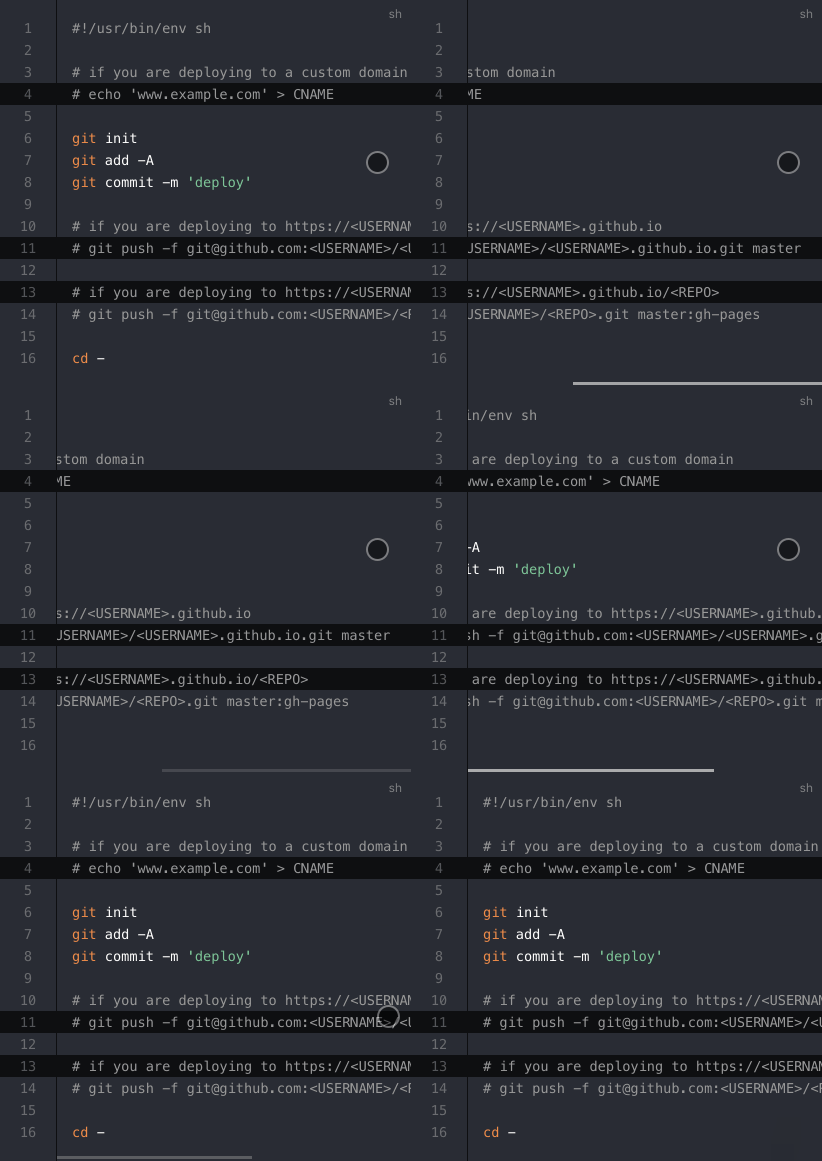
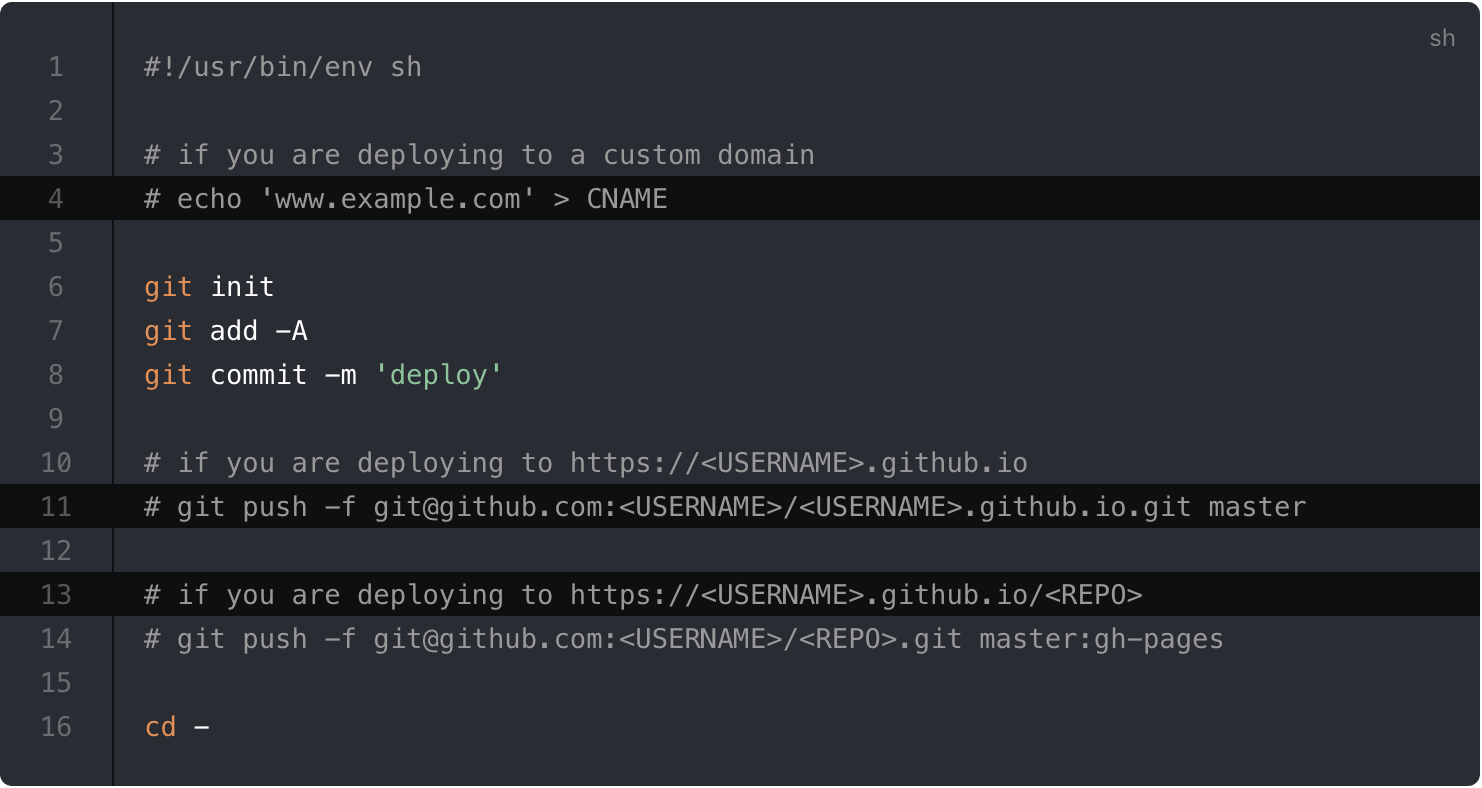
你可以通过配置启用每个代码块的行号:
module.exports = {
  markdown: {
    lineNumbers: true,
  },
};
- Demo:
导入代码片段
你可以通过以下语法从现有文件中导入代码片段:
<<< @/filepath
它还支持行高亮显示:
<<< @/filepath{highlightLines}
输入
<<< @/snippets/snippet.js{2}
代码文件
export default function () {
  // ..
}
输出
export default function () {
  // ..
}
TIP
@ 的值对应于 process.cwd().
您还可以使用 VS Code region 来仅包括代码文件的相应部分. 您可以在文件路径后的 # 后面提供自定义的域名称(默认为 snippet):
输入
<<< @/snippets/snippet-with-region.js{1}
代码文件
// #region snippet
function foo() {
  // ..
}
// #endregion snippet

export default foo;
输出
function foo() {
  // ..
}进阶配置
VitePress 使用 markdown-it 作为 Markdown 渲染器. 上面的许多扩展都是通过自定义插件实现的. 您可以通过 .vitepress/config.js 中的 markdown 选项进一步自定义 markdown-it 实例:
module.exports = {
  markdown: {
    // options for markdown-it-anchor
    anchor: { permalink: false },

    // options for markdown-it-toc
    toc: { includeLevel: [1, 2] },

    config: (md) => {
      // use more markdown-it plugins!
      md.use(require("markdown-it-xxx"));
    },
  },
};